ThirdPerson Character Control
새로운 프로젝트 스펙이 3인칭에 액션이 중요한 프로젝트라 3인칭 튜토리얼에서 이동, 카메라 제어 등을 분석해 보자.
좋은 방법이 있으면 가져다 써야겠다.. ㅎ
입력 처리
입력처리는 따로 컴포넌트로 분리하여 처리하는 듯하다.
PlayerInput을 이용하여 입력을 처리한다.
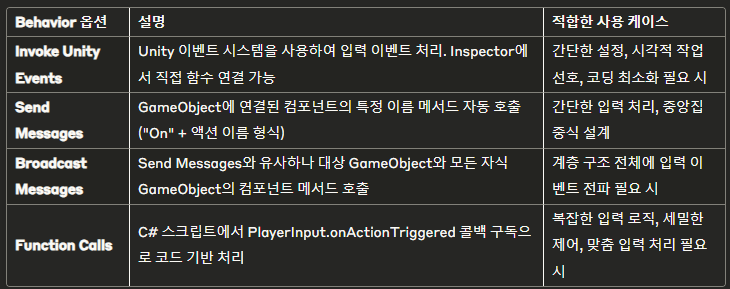
해당 프로젝트에서는 Send Message 형식으로 입력을 처리했다.
#if ENABLE_INPUT_SYSTEM
    public void OnMove(InputValue value)
    {
        MoveInput(value.Get<Vector2>());
    }

    public void OnLook(InputValue value)
    {
        if(cursorInputForLook)
        {
            LookInput(value.Get<Vector2>());
        }
    }

    public void OnJump(InputValue value)
    {
        JumpInput(value.isPressed);
    }

    public void OnSprint(InputValue value)
    {
        SprintInput(value.isPressed);
    }
#endif각 Input함수에 값을 전달하는 역할만 한다.
public void MoveInput(Vector2 newMoveDirection)
{
    move = newMoveDirection;
}

public void LookInput(Vector2 newLookDirection)
{
    look = newLookDirection;
}

public void JumpInput(bool newJumpState)
{
    jump = newJumpState;
}

public void SprintInput(bool newSprintState)
{
    sprint = newSprintState;
}public으로 열린 변수에 값을 업데이트하는 듯한데 이러면 On+Action에서 처리해도 되지 않나 싶다.
이동
위의 변수들을 PlayerController에서 참조하여 이동에 사용한다.
private void Update()
{
    _hasAnimator = TryGetComponent(out _animator);

    JumpAndGravity();
    GroundedCheck();
    Move();
}PlayerController의 Update부분을 보면 중력 적용, 이동을 처리한다.
우선, Move부터 봐보자.
//Sprint여부에 따라 속도 설정
float targetSpeed = _input.sprint ? SprintSpeed : MoveSpeed;

//이동 입력이 없으면 속도 = 0
if (_input.move == Vector2.zero) targetSpeed = 0.0f;처음에는 input을 체크하여 속도를 설정한다.
float currentHorizontalSpeed = new Vector3(_controller.velocity.x, 0.0f, _controller.velocity.z).magnitude;

float speedOffset = 0.1f;
float inputMagnitude = _input.analogMovement ? _input.move.magnitude : 1f;현재 속도를 가져온 뒤, input의 analogMovent를 통해 입력의 세기를 설정한다.
조이스틱 같은 것들을 처리하는 듯하다.
if (currentHorizontalSpeed < targetSpeed - speedOffset ||
    currentHorizontalSpeed > targetSpeed + speedOffset)
{
    _speed = Mathf.Lerp(currentHorizontalSpeed, targetSpeed * inputMagnitude,
        Time.deltaTime * SpeedChangeRate);

    _speed = Mathf.Round(_speed * 1000f) / 1000f;
}
else
{
    _speed = targetSpeed;
}만약, 현재 속도에서 크게 벗어난 수준의 속도라면 선형보간을 통해 적절한 속도를 계산한다.
그렇지 않다면 그대로 적용한다.
_animationBlend = Mathf.Lerp(_animationBlend, targetSpeed, Time.deltaTime * SpeedChangeRate);
if (_animationBlend < 0.01f) _animationBlend = 0f;

Vector3 inputDirection = new Vector3(_input.move.x, 0.0f, _input.move.y).normalized;

if (_input.move != Vector2.zero)
{
    _targetRotation = Mathf.Atan2(inputDirection.x, inputDirection.z) * Mathf.Rad2Deg +
                      _mainCamera.transform.eulerAngles.y;
    float rotation = Mathf.SmoothDampAngle(transform.eulerAngles.y, _targetRotation, ref _rotationVelocity,
        RotationSmoothTime);

    transform.rotation = Quaternion.Euler(0.0f, rotation, 0.0f);
}목표 속도를 기준으로 animationBlend 값을 정한다.
이는 애니메이션의 전체적인 blend값을 결정한다.
이후, input의 move값을 기준으로 방향을 결정하고 회전값을 결정하는데, 카메라의 y축 회전을 더해준다.
즉, w키를 눌렀다고 무조건 앞을 보는 게 아니라 카메라의 회전을 고려해 어느 방향으로 회전할지 정한다는 것이다.
Vector3 targetDirection = Quaternion.Euler(0.0f, _targetRotation, 0.0f) * Vector3.forward;

_controller.Move(targetDirection.normalized * (_speed * Time.deltaTime) +
                 new Vector3(0.0f, _verticalVelocity, 0.0f) * Time.deltaTime);

if (_hasAnimator)
{
    _animator.SetFloat(_animIDSpeed, _animationBlend);
    _animator.SetFloat(_animIDMotionSpeed, inputMagnitude);
}결정된 rotation을 통해 이동할 방향벡터를 정하고 해당 방향으로 속도를 계산하여 이동시킨다.
verticalVelocity는 수직 방향의 이동이며 이는 점프처럼 이동하는 행동과 중력 등을 적용하여 관리하는 변수이다.
점프 및 중력 적용
이제 점프와 중력을 어떻게 적용하는지 살펴보자.
if (Grounded)
{
    _fallTimeoutDelta = FallTimeout;

    if (_hasAnimator)
    {
        _animator.SetBool(_animIDJump, false);
        _animator.SetBool(_animIDFreeFall, false);
    }

    if (_verticalVelocity < 0.0f)
    {
        _verticalVelocity = -2f;
    }

    if (_input.jump && _jumpTimeoutDelta <= 0.0f)
    {
        _verticalVelocity = Mathf.Sqrt(JumpHeight * -2f * Gravity);

        if (_hasAnimator)
        {
            _animator.SetBool(_animIDJump, true);
        }
    }

    if (_jumpTimeoutDelta >= 0.0f)
    {
        _jumpTimeoutDelta -= Time.deltaTime;
    }
}땅에 붙어 있다면 점프가 가능하다.
anim을 초기화한 후, 수직방향의 속도가 0보다 작다면 -2로 초기화한다.
또한, fallOut TimeOut도 같이 초기화해 준다.
이는 점프를 적용했을 때 0 이하일 수 있는 경우를 막기 위함이다.
점프가 눌리면 수직 방향 속도를 2 * G * hegiht으로 초기화해 준다.
이는 원하는 높이에 도달하는 데 필요한 초기 속도를 계산하는 과정이다.
다음 프레임부터는 jumpTimeoutDelta가 0이 되기 전까지 점점 감소시킨다.
else
{
    _jumpTimeoutDelta = JumpTimeout;

    if (_fallTimeoutDelta >= 0.0f)
    {
        _fallTimeoutDelta -= Time.deltaTime;
    }
    else
    {
        if (_hasAnimator)
        {
            _animator.SetBool(_animIDFreeFall, true);
        }
    }

    _input.jump = false;
}만약, 공중에 있다면 jump Timeout을 초기화하고 falloutTimeout을 점점 감소시킨다.
만약, falloutTimeout이 0 이하로 떨어진다면 자유 낙하 애니메이션을 실행한다.
즉, 시간으로 고점을 계산하여 애니메이션을 변경한다.
하지만, 이는 초기 속도나 중력값에 의해 달라질 수 있기 때문에 완벽하다고 생각하지는 않는다.
개선된 방법으로는 초기 속도가 절반이 된다면 고점에 위치한 것이라 수직 방향 속도를 적절히 fit 하여 애니메이션 블렌딩을 진행하는 것이 좋을 것 같다.
현재 예에서는 자유 낙하 애니메이션이 bool타입으로 관리되므로 예시는 다음과 같을 것이다.
if (!Grounded)
{
    // 현재 속도가 초기 속도의 절반보다 작아지면 (고점을 지났다면)
    if (_verticalVelocity < _initialJumpVelocity / 2.0f && _verticalVelocity > 0)
    {
        if (_hasAnimator)
        {
            _animator.SetBool(_animIDFreeFall, true);
        }
    }
}
그리고 다음 코드는 중력을 묘사한 코드이다.
if (_verticalVelocity < _terminalVelocity)
{
    _verticalVelocity += Gravity * Time.deltaTime;
}
그리고 매 Update마다 땅과 접촉했는지 확인한다.
private void GroundedCheck()
{
    Vector3 spherePosition = new Vector3(transform.position.x, transform.position.y - GroundedOffset,
        transform.position.z);
    Grounded = Physics.CheckSphere(spherePosition, GroundedRadius, GroundLayers,
        QueryTriggerInteraction.Ignore);

    if (_hasAnimator)
    {
        _animator.SetBool(_animIDGrounded, Grounded);
    }
}현재 위치에서 어느 정도 밑으로 padding을 주고 CheckSphere를 통해 땅과 닿았는지 확인한다.
이때, 마지막 옵션인 QueryTriggerInteraction.Ignore는 trigger설정된 collider에 어떻게 반응할지 설정하는 옵션이다.
현재 옵션으로는 trigger로 설정된 collider는 무시한다는 뜻이다.
카메라
이제 마지막으로 카메라 움직임을 분석해 보자.
카메라 회전은 LateUpdate에서 처리한다.
이를 통해 캐릭터가 미리 움직이고 카메라가 늦게 따라가는 효과를 줘 자연스러운 화면을 연출할 수 있다.
private void CameraRotation()
{
    if (_input.look.sqrMagnitude >= _threshold && !LockCameraPosition)
    {
        float deltaTimeMultiplier = IsCurrentDeviceMouse ? 1.0f : Time.deltaTime;

        _cinemachineTargetYaw += _input.look.x * deltaTimeMultiplier;
        _cinemachineTargetPitch += _input.look.y * deltaTimeMultiplier;
    }

    _cinemachineTargetYaw = ClampAngle(_cinemachineTargetYaw, float.MinValue, float.MaxValue);
    _cinemachineTargetPitch = ClampAngle(_cinemachineTargetPitch, BottomClamp, TopClamp);

    CinemachineCameraTarget.transform.rotation = Quaternion.Euler(_cinemachineTargetPitch + CameraAngleOverride,
        _cinemachineTargetYaw, 0.0f);
}input의 look이 threshold 이상이면 회전을 처리한다.
현재 기기가 마우스인지 다른 기기인지 확인하여 감도를 설정한다.
입력값에 의해 cinemachine의 타깃 Yaw, Pitch를 조절한다.
이후, ClampAngle을 통해 카메라의 최소, 최대 회전을 보정해 준다.
private static float ClampAngle(float lfAngle, float lfMin, float lfMax)
{
    if (lfAngle < -360f) lfAngle += 360f;
    if (lfAngle > 360f) lfAngle -= 360f;
    return Mathf.Clamp(lfAngle, lfMin, lfMax);
}상하는 바닥, 천장으로 최소 최대를 정의해 주고 좌우는 float의 최소 최대로 보정해 준다.
즉, 좌우는 보정하지 않는다는 뜻이다.
정리
해당 프로젝트는 CharacterController를 통해 자연스러운 캐릭터 이동을 구현했다.
하지만, CharacterController는 중력이 적용되지 않기 때문에 따로 구현해 주어야 한다.
간단하게 점프와 중력을 설명하자면, 초기 속도를 계산하고 꾸준히 중력을 적용하여 캐릭터의 움직임을 제어한다.
_controller.Move(targetDirection.normalized * (_speed * Time.deltaTime) +
new Vector3(0.0f, _verticalVelocity, 0.0f) * Time.deltaTime);이걸 애니메이션 Move와 적절히 엮어내는 방법도 필요할 것 같다.
AnimationMove와 중력 계산 등을 자연스럽게 처리하는 방법을 연구해 보자.